Installation on Windows
Prerequisites
- Windows 7 SP1 or newer is required.
- Windows Vista and Windows XP are no longer supported.
Step 1: Download and install VCMI
Download and install VCMI using one of the following options:
- Latest release (recommended): GitHub Releases
- Daily builds (unstable, for testing): VCMI Builds
Download the installer and run it. Follow the installer instructions.
After installation, start VCMI Launcher.
Step 2: Obtain Heroes III data files
VCMI requires original Heroes of Might and Magic III data files.
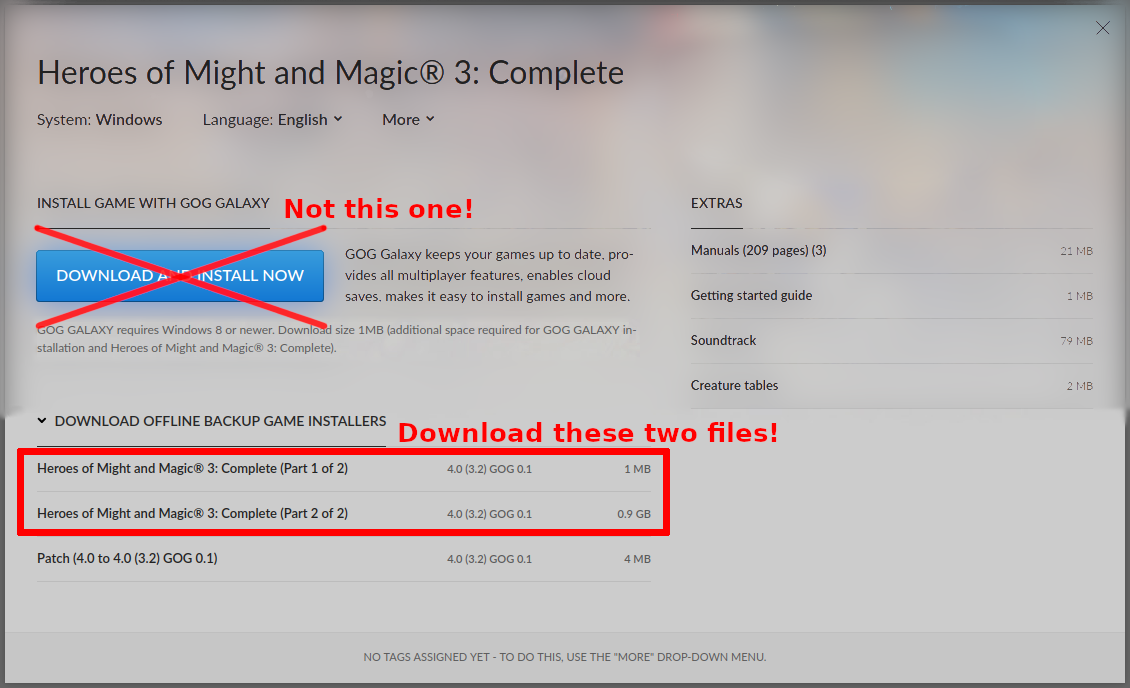
Option A (recommended): GOG offline installer
- Download the offline backup installer from GOG.com.
- The installer comes as two files:
.exe.bin- Make sure both files are downloaded.
Option B: Existing installation
If you already have Heroes III installed (Complete or Shadow of Death edition), you can reuse that installation.
Step 3: Import Heroes III data into VCMI
Start VCMI Launcher.
- Select your preferred language.
- Choose one of the following methods:
A) Import from GOG installer
- Select the option to import GOG files.
- First select the
.exefile. The matching.binfile will be located automatically if the correct installer is selected. - Launcher will automatically extract required files.
B) Use existing Heroes III installation
Launcher may automatically detect your Heroes III installation.
If detection fails:
- Locate your Heroes III installation folder.
- Copy these directories:
DataMapsMp3
into: "%USERPROFILE%\Documents\My Games\vcmi"
- Return to Launcher and press Scan again.
Step 4: Finish setup in Launcher
Follow the instructions shown in the Launcher to complete installation and optionally download recommended mods.
VCMI is now ready to play.
Changing VCMI data directory
By default, VCMI stores imported Heroes III files, mods, saves, settings and logs in %USERPROFILE%\Documents\My Games\vcmi. Advanced users can change these locations by creating <VCMI installation directory>\config\dirs.json
Example:
All keys are optional. Environment variables in paths are expanded, so values like %LOCALAPPDATA%\\VCMI\\cache can be used. Restart VCMI after changing this file and move existing data to the new location if needed.